

Choose the relevant instructions
Use the Android section for phones running Android and the iPhone section for iOS. A mobile browser shortcut may look like an installed app on the home screen. Open its information or settings to identify what you are using before looking for an update or changing how it connects. Keep the browser available while working through the illustrated steps.
Review a connection change
The optional WARP walkthrough below concerns the device's network connection. Read each operating-system prompt on your own device. If it belongs to an employer or school, check with its administrator before changing a VPN profile. Return to the connection screen after making a change and use the displayed status to decide whether the requested change took effect.
After reviewing the pictures
Use the four pictures for one platform in sequence. A prompt that appears on iPhone may occur at a different stage on Android. Check the publisher name in the store and read the profile request before pressing Allow. Screenshots illustrate the decision being made; the actual prompt on your device determines what changes if you continue.
Return to normal use
After checking the connection, return to the application or browser tab where the issue began. Try the original page once and compare what happens with the earlier behaviour. If only one page fails, record its label and the displayed message. If you no longer need an optional connection profile, review it in the device's VPN settings.
1.1.1.1 with WARP setup
iPhone and iPad
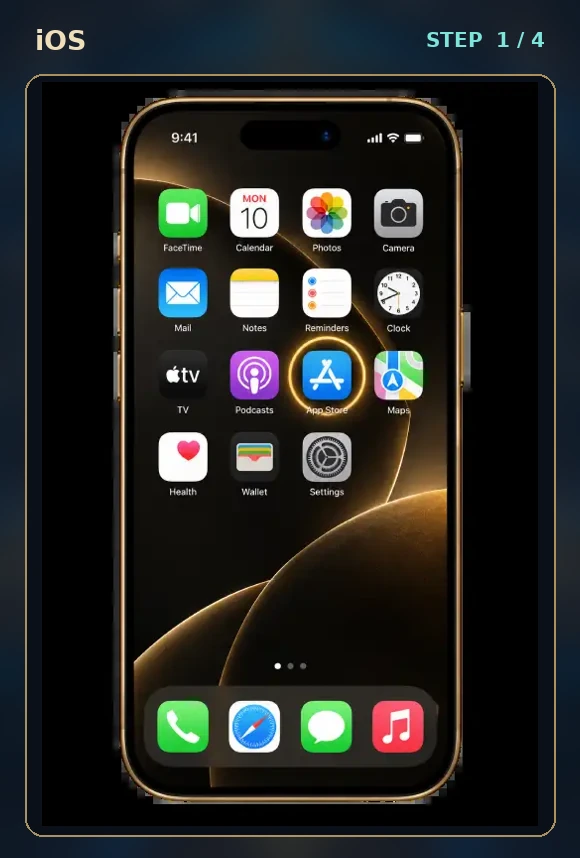
1. Find Cloudflare’s 1.1.1.1 app in the App Store.
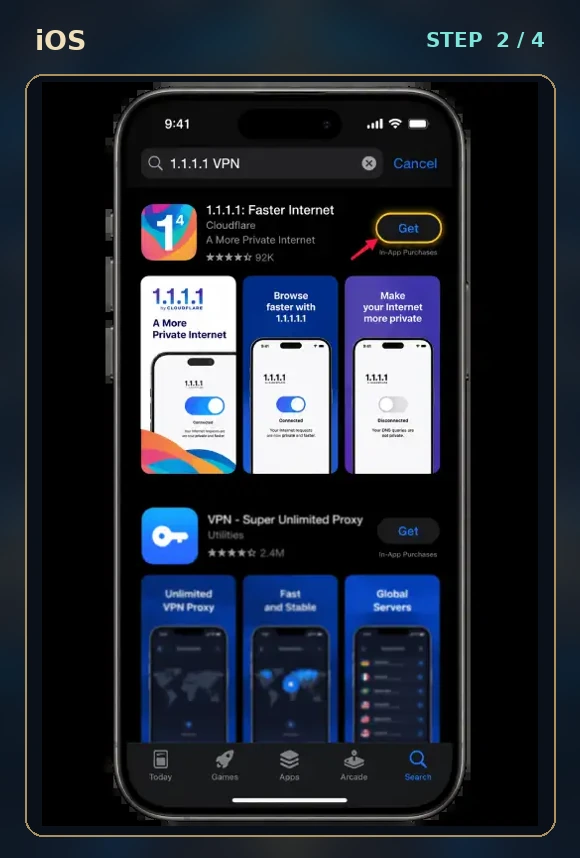
2. Check the publisher, install the app and review its terms.
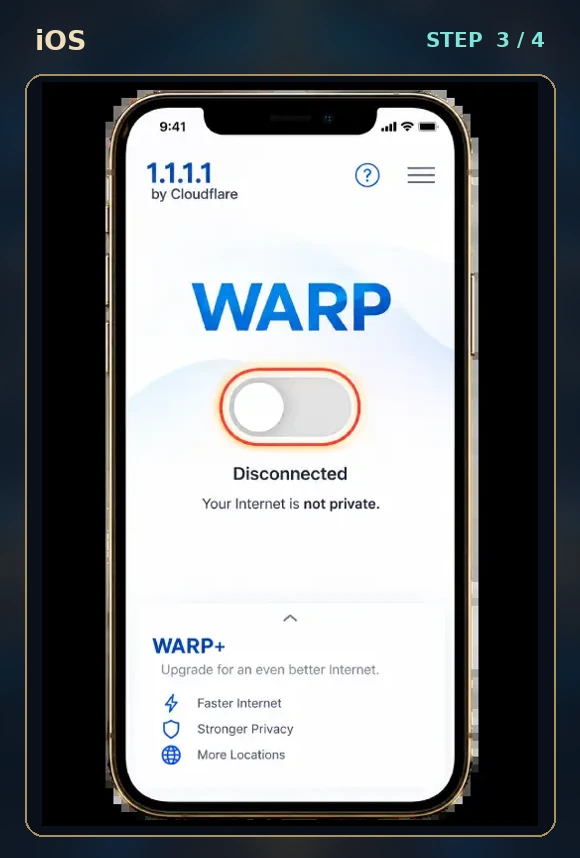
3. Review the request to add a VPN configuration.
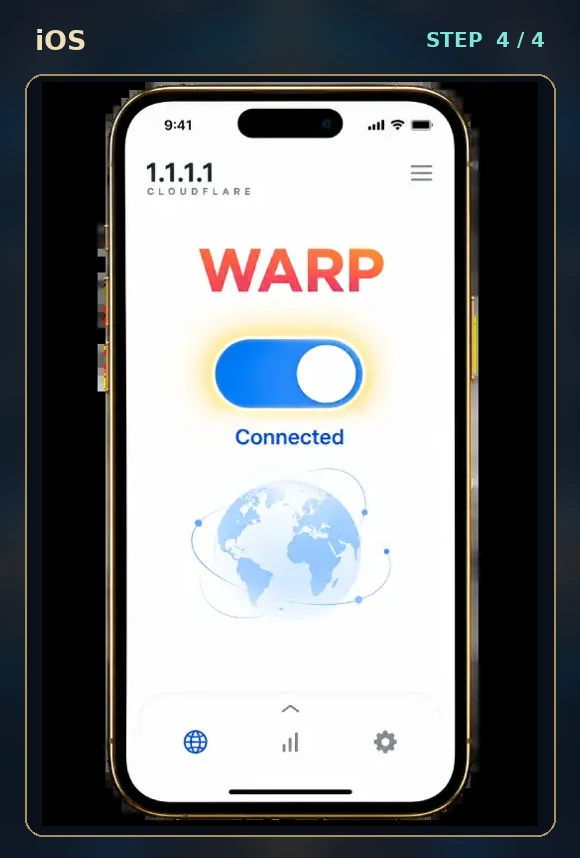
4. Turn on WARP and check the displayed connection status.
Android
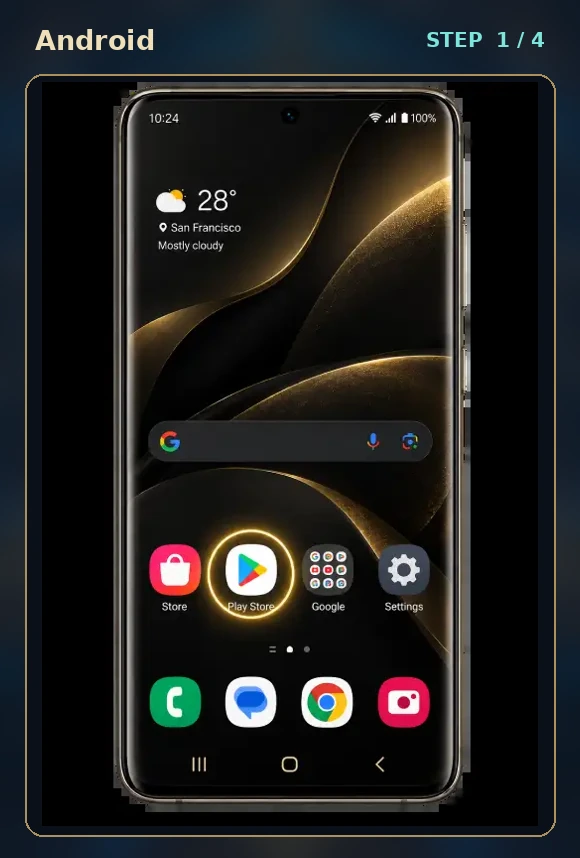
1. Find Cloudflare’s 1.1.1.1 app in Google Play.
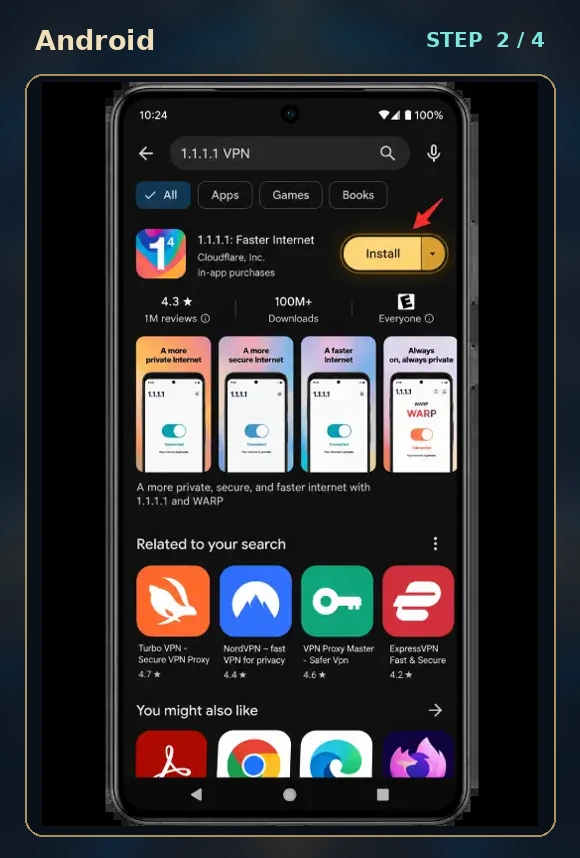
2. Check the publisher, install the app and open it.
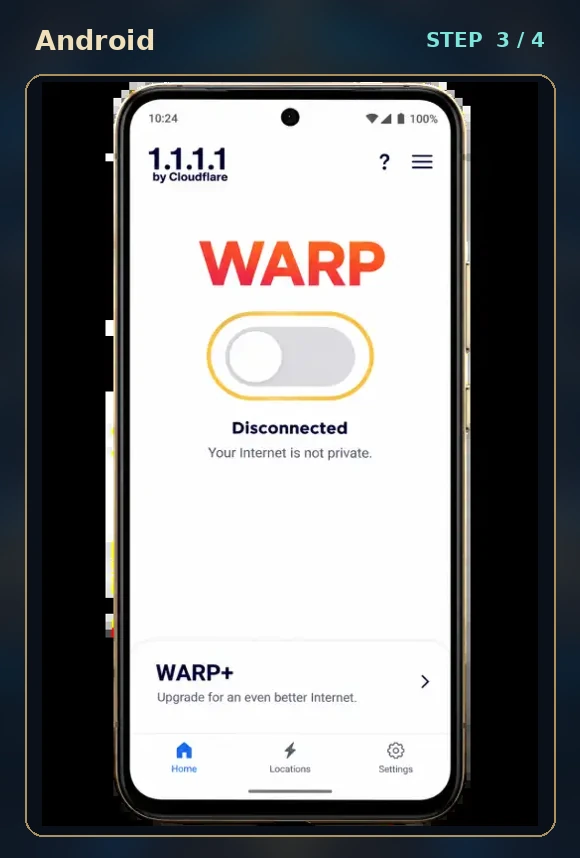
3. Use the WARP switch to request a connection.
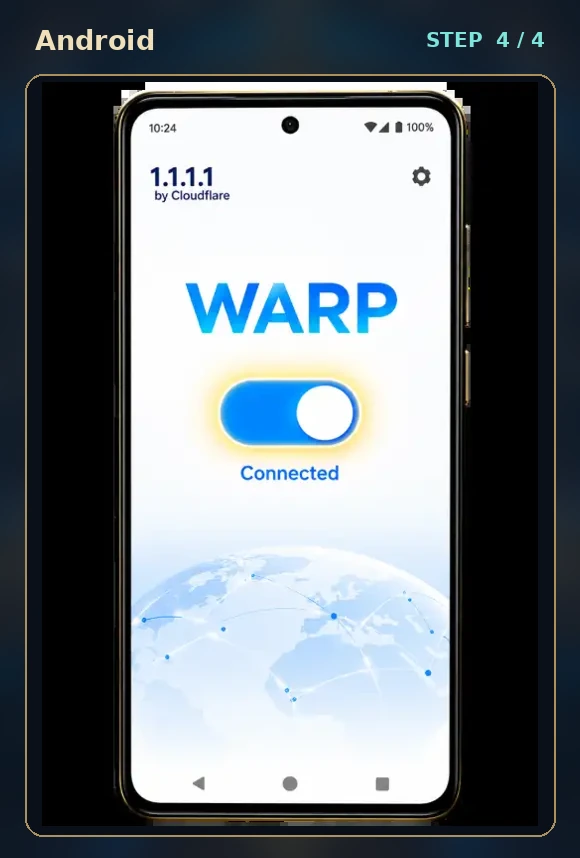
4. Read the system VPN request and check the resulting status.